Claude Desktop MCP Tool Installation
Connect Anysite MCP Server to Claude Desktop using OAuth
Overview
The Anysite MCP Tool for Claude Desktop provides seamless integration between Claude Desktop and the Anysite API through the Model Context Protocol (MCP). This allows Claude to extract LinkedIn, Instagram, Reddit, and other social media data directly within your conversations using OAuth authentication.
Prerequisites
- Claude Desktop application installed (download here)
- Anysite API account with active subscription
- Internet connection for OAuth authentication
Why Claude Desktop Integration?
OAuth Security
Secure OAuth 2.0 authentication - no API keys stored locally
Native Integration
Built-in connector support with easy setup through Claude Desktop settings
Permission Control
Granular control over which tools Claude can access and when
Auto Updates
Automatic tool updates without manual configuration changes
Installation Steps
Step 1: Get OAuth Connection URL
First, obtain your OAuth URL from the Anysite dashboard:
- Visit anysite.io and log in to your account
- Navigate to MCP Server Integration section
- You'll see two connection options:
- OAuth URL:
https://mcp.anysite.io/mcp(recommended for Claude Desktop) - Direct URL: Contains API key (use for other clients)
- OAuth URL:
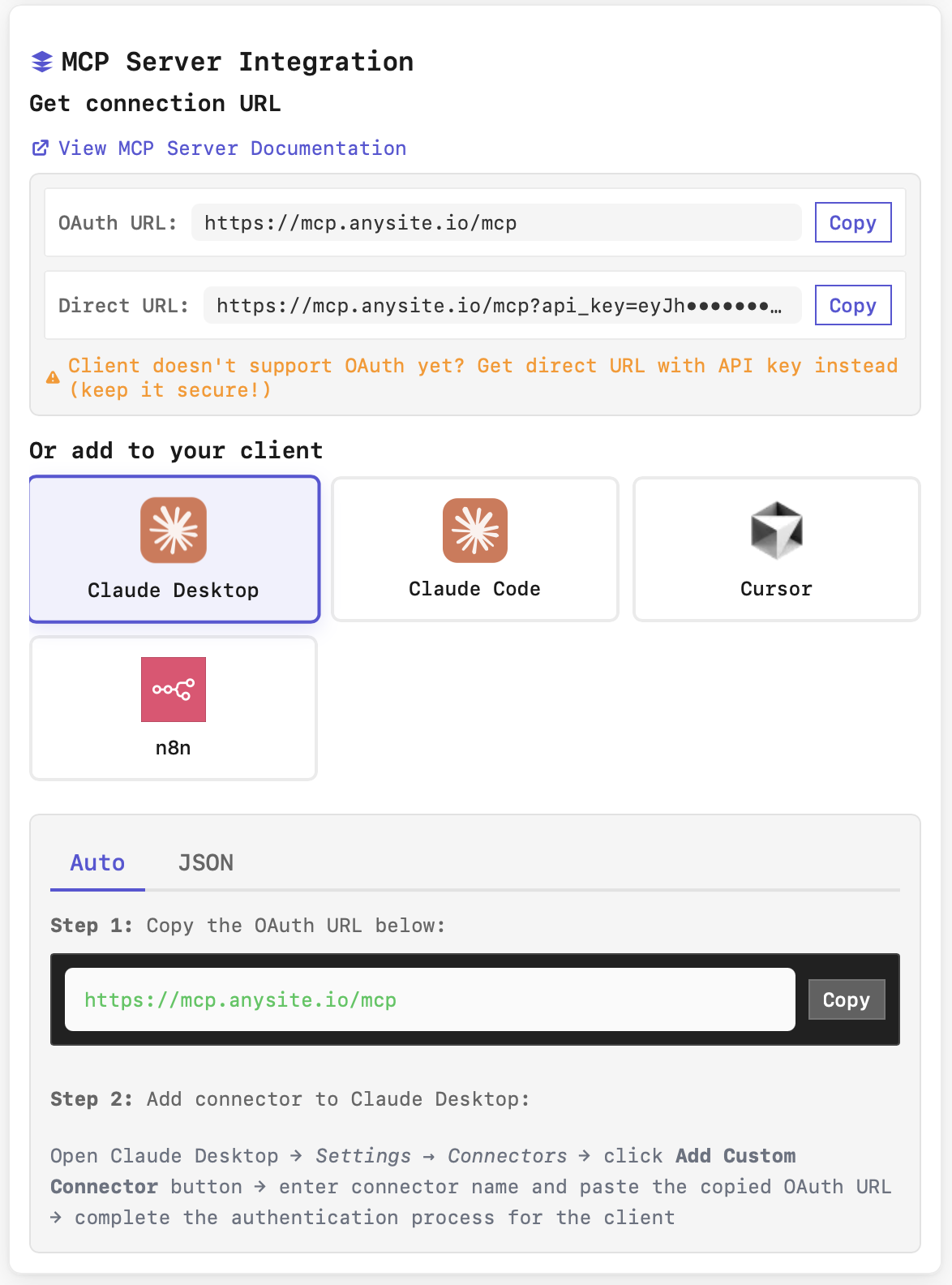
- In the "Or add to your client" section, select Claude Desktop
- The "Auto" tab will show you the installation instructions:
- Step 1: Copy the OAuth URL:
https://mcp.anysite.io/mcp - Step 2: Instructions for adding connector to Claude Desktop
- Step 1: Copy the OAuth URL:
For Claude Desktop, always use the OAuth URL (not Direct URL) for better security and automatic credential management.
Step 2: Add Custom Connector in Claude Desktop
Now configure the connector in Claude Desktop:
- Open Claude Desktop application
- Navigate to Settings (gear icon in the bottom-left)
- Click on Connectors tab
- Click the Add Custom Connector button
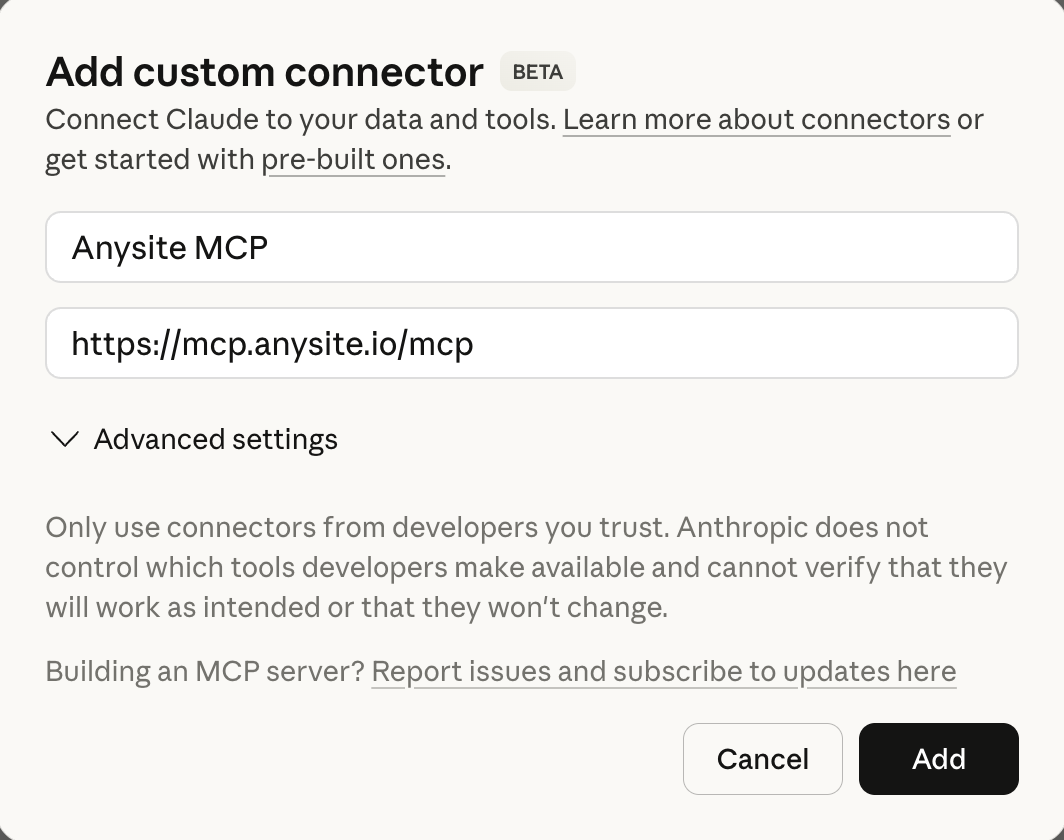
Fill in the connector details:
- Connector Name: Enter "Anysite MCP" (or any name you prefer)
- OAuth URL: Paste
https://mcp.anysite.io/mcp
Expand Advanced settings if needed (usually defaults are fine)
You'll see a warning: "⚠ Confirm that you trust this connector"
- This is normal for custom connectors
- Read: "This connector has not been verified by Anthropic. You are responsible for all actions taken with Claude."
Click Add button to save the connector
Only add connectors from trusted sources. The Anysite MCP connector is safe and only accesses data through the Anysite API with your explicit permission.
Step 3: Connect the Connector
After adding the connector, you need to establish the connection:
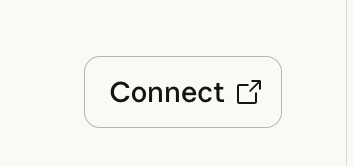
- In the Connectors settings, find your newly added "Anysite MCP" connector
- Click the Connect button (with arrow icon)
- This will open your default web browser for OAuth authentication
Step 4: Authorize Application
Complete the OAuth authorization process:
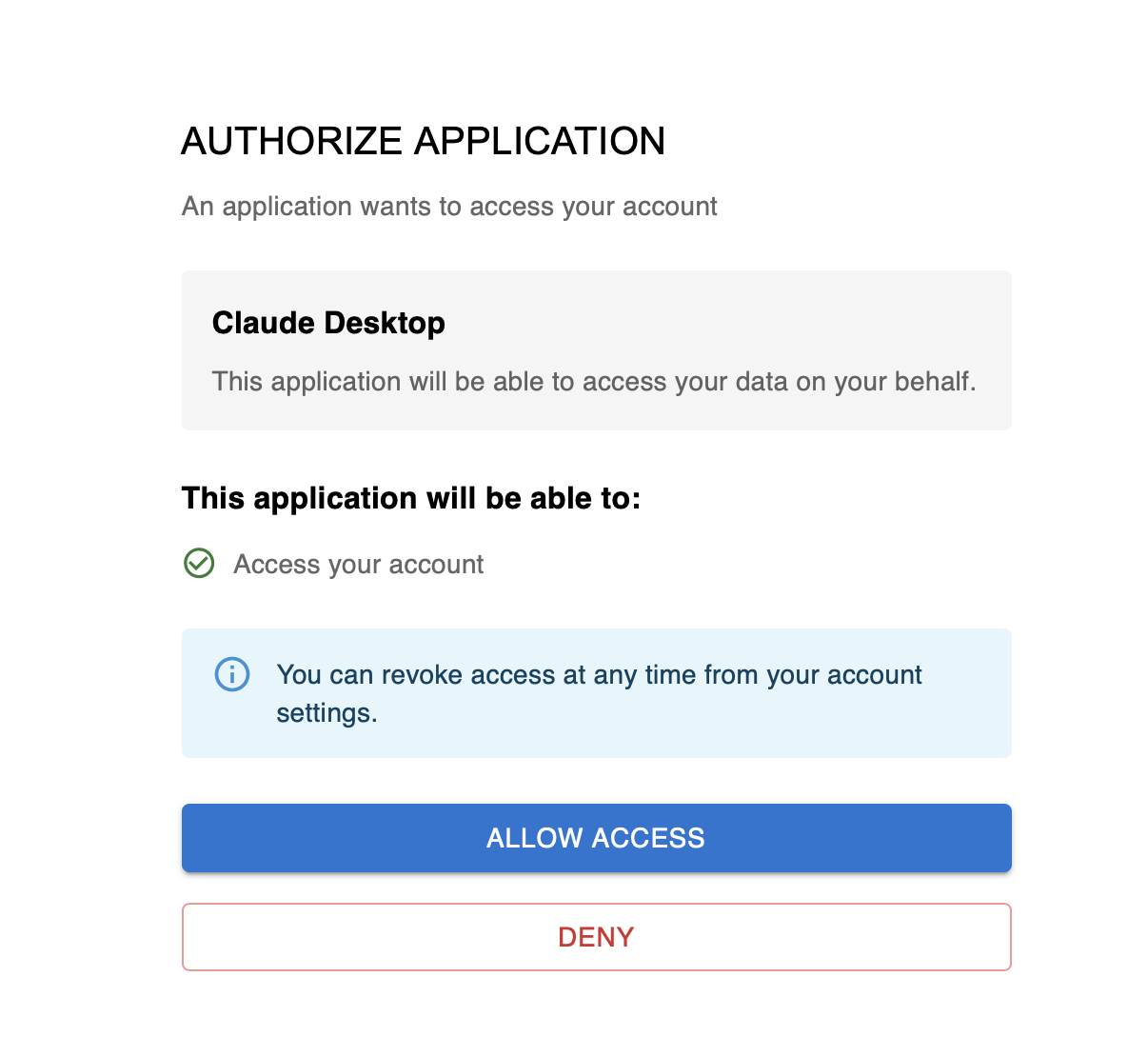
You'll see the "AUTHORIZE APPLICATION" screen
Review the information:
- Application: Claude Desktop
- Access: "This application will be able to access your data on your behalf"
- Permissions: "Access your account"
Note: "You can revoke access at any time from your account settings"
Click ALLOW ACCESS button to grant permission
Or click DENY if you changed your mind
After authorization, you'll be redirected back to Claude Desktop, and the connector will show as "Connected".
Step 5: Enable "Tools already loaded" Mode
Required setting — without this, Claude may fail to find the right Anysite tools for your requests.
The Anysite MCP Server uses a meta-tool architecture with 5 universal tools (discover, execute, get_page, query_cache, export_data). The default "Load tools when needed" mode searches by tool name only and often fails to match generic names like discover to queries like "Find Dario Amodei on LinkedIn".
- Open Settings in Claude Desktop
- Go to Feature Preview section
- Find Tool access → Tool access mode
- Select "Tools already loaded"
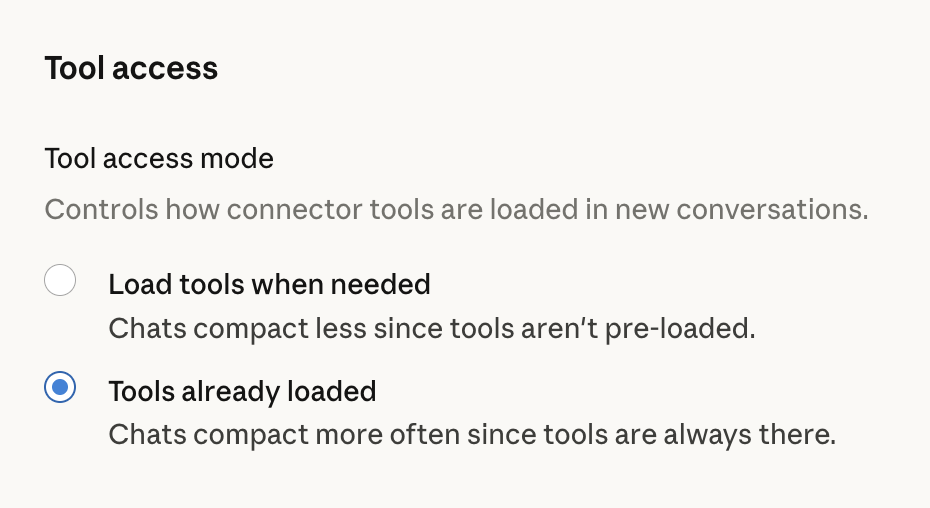
With "Tools already loaded", all 5 meta-tools and server instructions are always in Claude's context. Since there are only 5 tools (not 70+), the context overhead is minimal.
Step 6: Manage Tool Permissions
Configure which tools Claude can use and how:
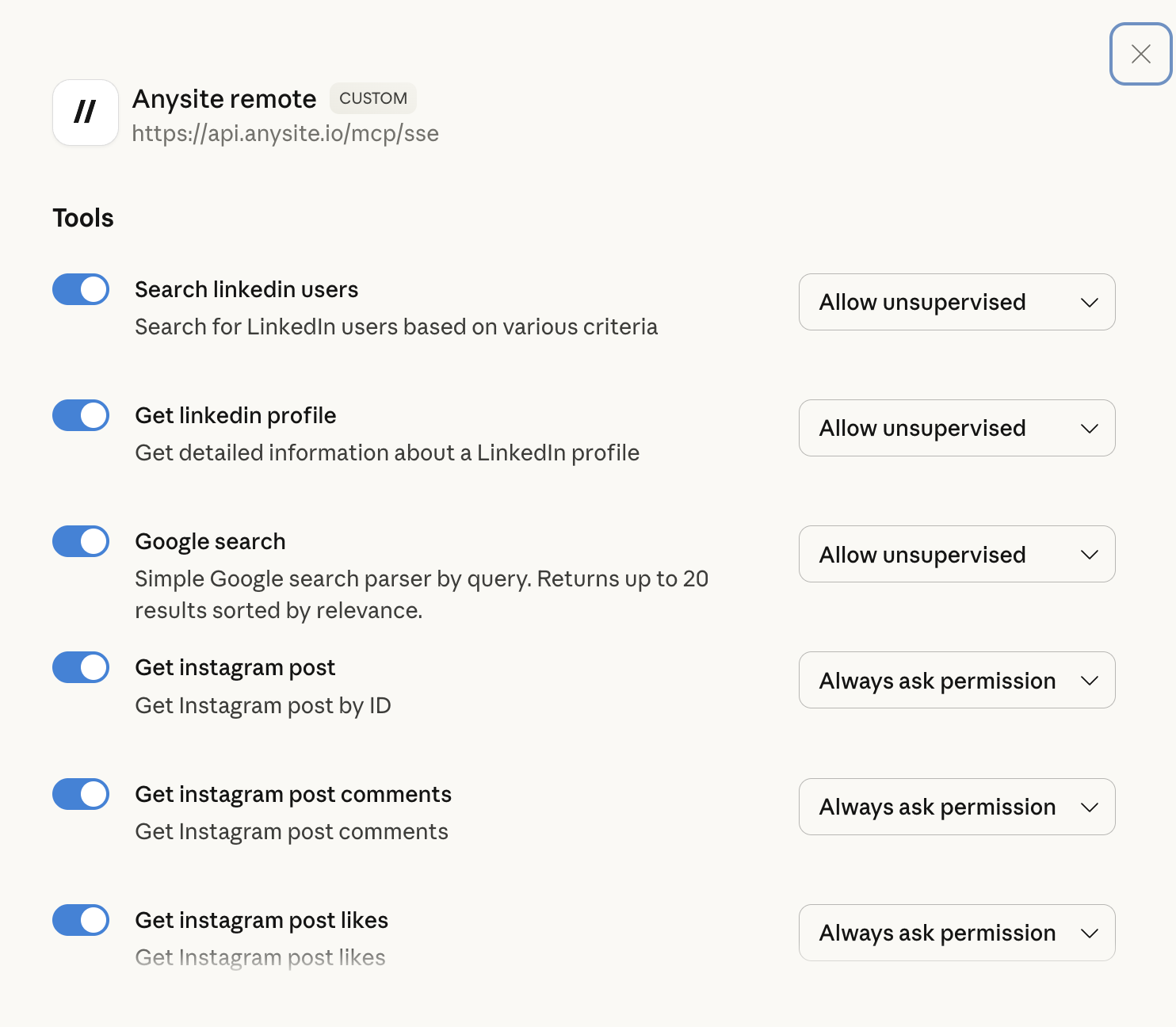
- In the Connectors settings, you'll see your connected "Anysite remote" connector
- Click on it to view available Tools
- Each tool can be toggled on/off and has permission settings:
Available Tools:
- discover — Learn what endpoints and parameters are available
- execute — Fetch data from any of 115+ endpoints
- get_page — Paginate through large result sets
- query_cache — Filter, sort, and aggregate cached results server-side
- export_data — Download datasets as JSON/CSV/JSONL
Permission Levels:
- Allow unsupervised - Claude can use the tool without asking each time
- Always ask permission - You'll be prompted before each tool use
- Disabled - Tool is not available for use
Start with "Always ask permission" for all tools until you're comfortable with how they work. Then switch frequently-used tools to "Allow unsupervised" for smoother workflows.
Verification
Test your MCP integration:
- Start a new conversation in Claude Desktop
- Ask: "What MCP tools do you have access to?"
- Claude should list all enabled Anysite tools
- Try a simple request: "Get me information about this LinkedIn profile: https://linkedin.com/in/username"
If everything is working correctly, Claude will either:
- Use the tool directly (if "Allow unsupervised")
- Ask for your permission to use the tool (if "Always ask permission")
Managing Your Connection
Disconnect Connector
To disconnect the Anysite MCP connector:
- Go to Settings → Connectors
- Find "Anysite MCP" connector
- Click Disconnect
Revoke Access
To fully revoke access from Anysite side:
- Visit anysite.io
- Go to Account Settings
- Navigate to Connected Applications
- Find "Claude Desktop" and revoke access
Reconnect
If you need to reconnect:
- Click the Connect button again in Claude Desktop
- You may need to re-authorize through OAuth if access was revoked
Troubleshooting
Connector won't connect or shows error
**Solutions:**
- Ensure your Anysite account is active with valid subscription
- Check your internet connection
- Try disconnecting and reconnecting the connector
- Clear Claude Desktop cache and restart the application
- Verify the OAuth URL is exactly: `https://mcp.anysite.io/mcp`
OAuth authorization fails or times out
**Solutions:**
- Ensure you're logged in to your Anysite account in the browser
- Check if popup blockers are preventing the OAuth window
- Try using a different browser as default
- Clear browser cookies for anysite.io and retry
- Check if your firewall is blocking api.anysite.io
Tools not appearing after connection
**Solutions:**
- Restart Claude Desktop completely
- Disconnect and reconnect the connector
- Check if your Anysite subscription includes the tools you need
- Verify tool toggles are enabled (switched on)
- Try asking Claude explicitly: "Show me all available MCP tools"
Tools show but don't work / return errors
**Solutions:**
- Check API rate limits in your Anysite dashboard
- Verify your subscription is active and not expired
- Ensure you're providing valid input (e.g., correct LinkedIn URLs)
- Check if specific tools have permission set to "Disabled"
- Review error messages for specific guidance
Permission prompts too frequent
**Solutions:**
- Change permission level from "Always ask permission" to "Allow unsupervised" for trusted tools
- Note: "Allow unsupervised" means Claude can use tools without asking each time
- You can always change permissions back if needed
Connector shows as 'Custom' instead of verified
**Solutions:**
- This is expected behavior - Anysite MCP is a custom connector
- "CUSTOM" label means it's not built-in to Claude Desktop
- This is completely normal and doesn't affect functionality
- Only add custom connectors from sources you trust
Security & Privacy
OAuth Security
OAuth 2.0 ensures your API keys never touch your local machine. Authentication tokens are managed securely.
Revocable Access
You can revoke Claude Desktop's access to Anysite at any time from your account settings.
Audit Trail
All API requests are logged in your Anysite dashboard for transparency and monitoring.
Permission Control
Granular control over which tools Claude can use and whether approval is needed.
Best Practices
Start Restrictive: Begin with "Always ask permission" for all tools until you understand their behavior
Regular Reviews: Periodically review which tools are enabled and their permission levels
Monitor Usage: Check your Anysite dashboard regularly for API usage and quota
Secure Account: Use strong passwords and enable 2FA on your Anysite account
Test First: Try tools with sample data before using them on sensitive or production data
Update Regularly: Keep Claude Desktop updated to get the latest connector features
Document Workflows: Note which tools work best for your specific use cases
Comparison: OAuth vs Local Server
| Feature | Claude Desktop (OAuth) | Local Server |
|---|---|---|
| Setup Complexity | Easy (GUI-based) | Moderate (command line) |
| Authentication | OAuth 2.0 (secure) | Environment variables |
| Credentials | Managed automatically | Manual configuration |
| Tool Updates | Automatic | Requires git pull |
| Best For | General users, production | Developers, testing |
| Security | OAuth tokens | API keys in config |
| Revocation | One-click disconnect | Manual removal |
Next Steps
Need Help?
Get Support
Contact our support team for assistance with Claude Desktop MCP integration